
Getting started
Getting started: your first chapter
4 min read
MakeVox lets you write whichever way suits you. Type in a real editor, or say it out loud the way you would tell a friend the story, and the app shapes that raw dictation into clean prose that still sounds like you. Use both, and switch any time. This guide walks you from a blank workspace to your first finished chapter.
Tip. Want the whole path at a glance first? The lesson Start here: MakeVox in 3 minutes goes from picking your form to your next scene, the AI dial, and where Storyboard, your cast and Export live. Open it any time from Help, under How MakeVox works, or from the link at the end of your first session.
Start a story
MakeVox is free to start, and signing up needs no credit card. Sign up with Apple, Google, or your email address.
Tip. Signing up with email? MakeVox emails you a code to type in. If it hasn't arrived after a minute, check your Junk or Spam folder: the code comes from MakeVox. You can also press Resend the code under the code box, or use a different email.
As soon as your account is made, MakeVox gets you to a first page of your own, in about two minutes. First it asks what you are writing: a screenplay, a novel, comedy, poetry and lyrics, a stage play, or your life story. Then tell it the idea, out loud or in a sentence. Then say (or type) how it starts, and press Put it on the page.
Your words come back in the form you chose: a script scene laid out properly, a clean opening paragraph, lines of a poem, or a bit in your Bit Book. MakeVox shapes what you said and keeps your voice. It does not write the story for you. That page costs 1 AI action. Keep writing opens it in the editor, and that is just the first page.
Tip. Then try one more thing. In a screenplay, stage play or novel, talk to a character from your scene: they already know what just happened. A poem or a memoir can be read aloud to you, and a comedy bit can be played back so you can hear the timing. Skip for now is on every step if you would rather look around first.
Writing in MakeVox is free, and stays free. On the web, once one of your scenes or chapters holds a full page of your words (about 250), a small card under the editor says what the Writer plan adds: more AI actions every month for editing and voice. While Founding Writer spots are left it shows that offer too, at the same price as the pricing page. It appears after a save, never in the middle of one, shows once, and Not now closes it for good.
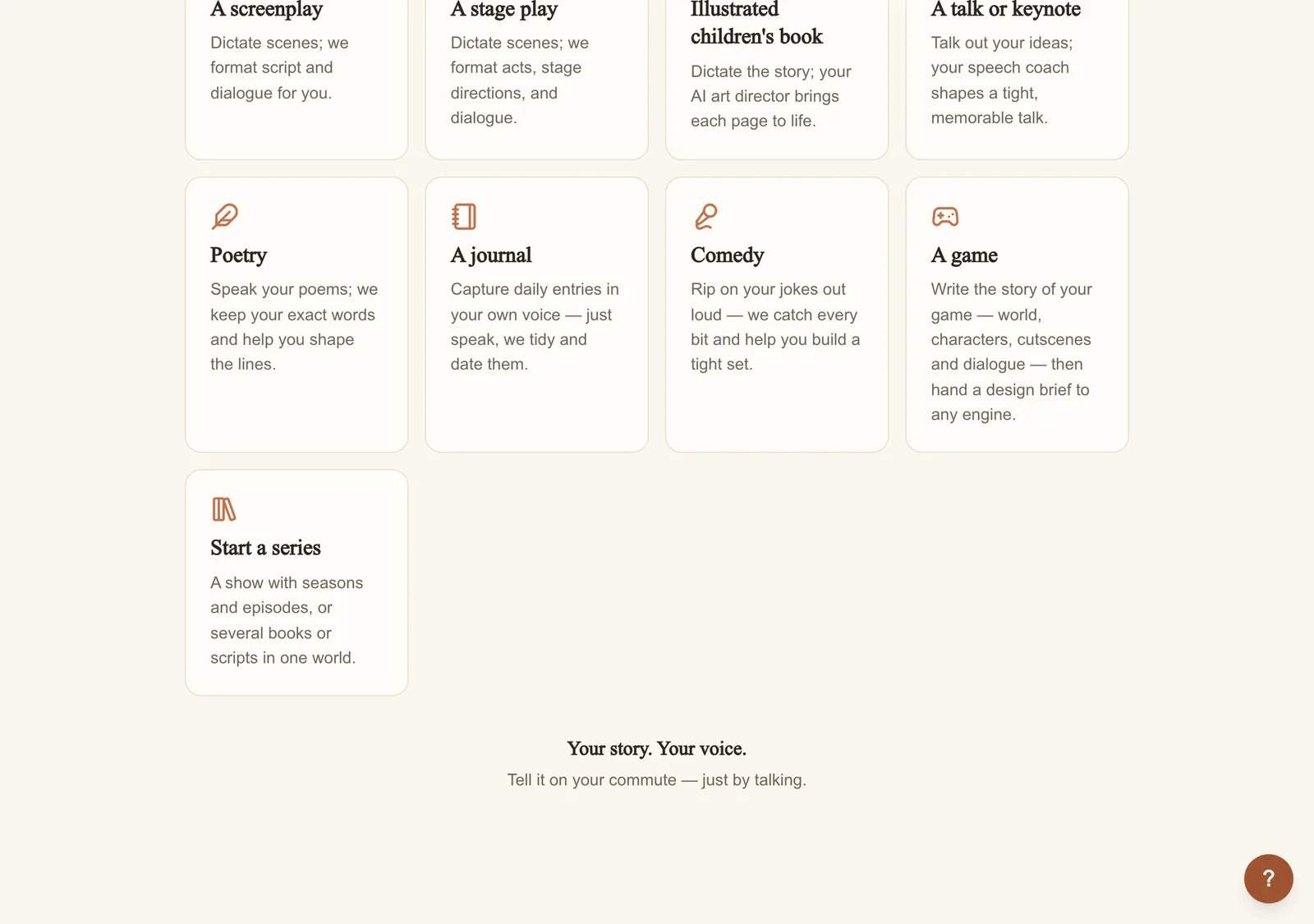
Every story after that starts from New story in My Stories, which asks what you want to write. Pick the kind of story that fits: a novel, a memoir, a non-fiction book, a screenplay, a picture book, or a few others. Your choice sets the workspace up for that kind of writing, from the outline structure down to the warm color of the page.
Planning more than one? Choose Start a series instead: a show with seasons and episodes, or several books or scripts set in one world. Name it, and you land in the series, ready to add its first story. A story you have already started can move into a series later from its ⋯ menu in My Stories.
You may get one welcome email after joining, with a link to start your first scene. You can reply to tell our team what brought you here. If you prefer no MakeVox emails, use its Unsubscribe link or turn email off in Settings › Notifications. Your choice applies to the same account on web and iOS.
Write your first words
Bringing an existing book? In a story's outline, choose Bring in your own writing. A DOCX exported from Atticus or Vellum becomes one section per Heading 1–3 chapter; a zipped Scrivener .scriv story folder brings draft binder items into sections and notes or research into Ideas. Review the proposed rows and the Needs your review report before importing. Keep the original file: images, formatting, and unreadable items are listed for review rather than carried over. On iPhone, use a DOCX chapter export until the Scrivener folder picker is available there.
Find the record button and start talking. You do not need a script or a plan. Describe the scene, narrate what happens, or just think out loud. Record on your walk, in the car, or before bed. MakeVox captures it all, hands free. At a keyboard? Click into the page and type instead, and pick the mic back up whenever you like.
Tip. Ramble. Half-sentences, false starts, and tangents are fine. Shaping the mess into prose is exactly what your editor is for.
Your editor shapes it
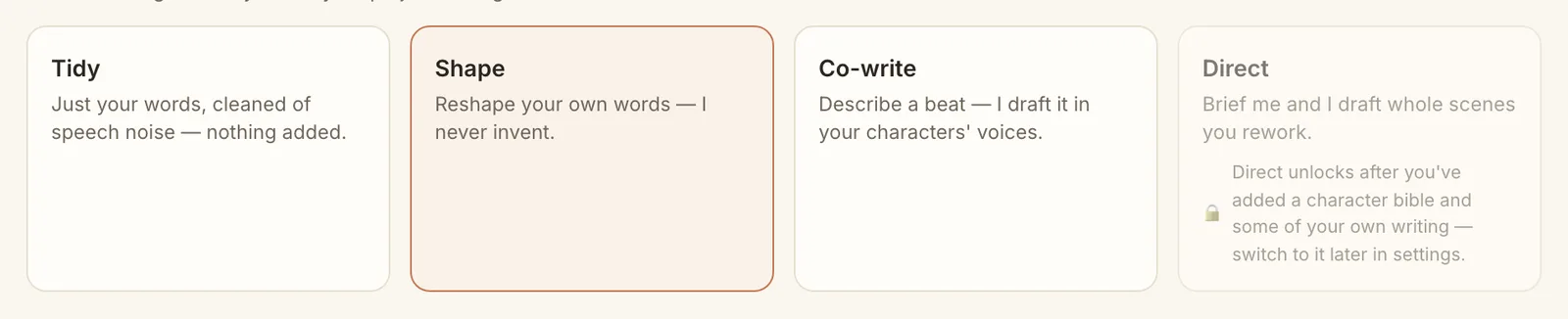
When you stop, the AI reads your dictation and turns it into clean, readable prose. By default it stays in Shape mode, which keeps your words and your voice and only smooths the rough edges. It is not rewriting your story for you. It is helping the words you already said land on the page well. (Want even less? Drop the dial to Tidy and it will only clean up the transcription.)
Your outline grows
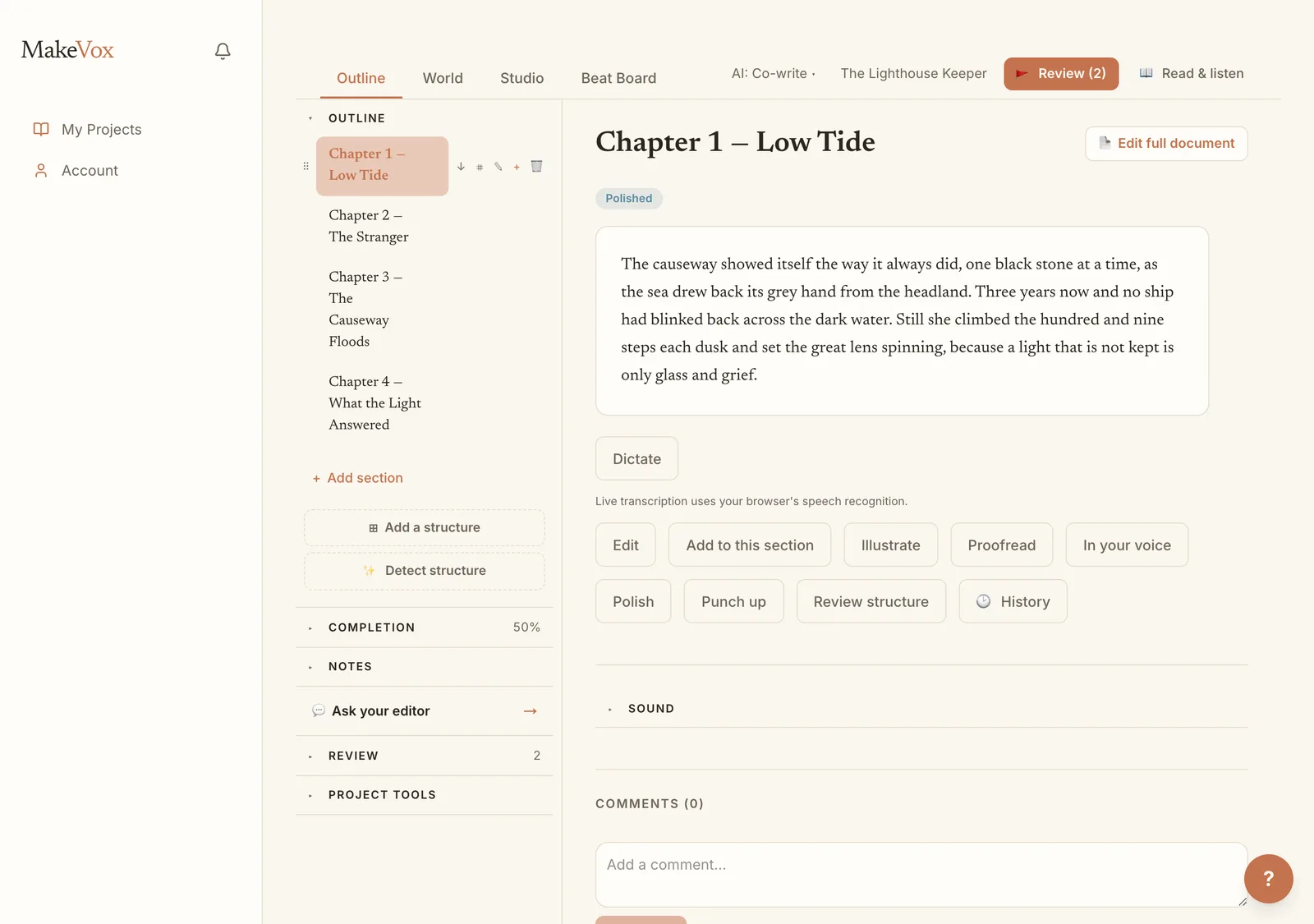
As you write, MakeVox organizes your work into an outline of chapters and sections you can see at a glance. New material slots into place, so the shape of your story builds itself while you focus on the story.
Add scene two (and every scene after)
The step that put your first scene on the page is there for every scene after it. Tell MakeVox how the next scene goes, in your own words, and it puts them on a new page after your last one, in your story's form. It reads your outline and the page before so names stay straight, and, like the first page, it shapes your words rather than writing new ones. It costs 1 AI action.
- Right after your first page: Write the next scene (Write the next bit for comedy).
- In any story, any time: New scene from an idea, under your outline.
- Or from the editor chat: New scene from an idea, at the top of Ask your editor.
A quick tour of the workspace
- The outline keeps your chapters and sections one click away.
- The editor is where your shaped prose lives, ready to read or refine.
- Ask your editor is your AI writing partner that remembers your premise, your world, and your cast, so you can talk through a scene or ask what happens next without re-explaining your story.
- A live word count shows your story growing in real time.
- Export is always within reach when you are ready to share.
Tip. The first time you open a story, a short guided tour points out each of these. You can skip it anytime, and replay it later from the workspace menu.
Write on any device
MakeVox works in your browser on any computer, Mac or PC, with nothing to install, and as an app for iPhone and iPad. One account works everywhere, and your stories sync between them. Go to makevox.ai/download for every way to get MakeVox.
That is the whole loop: speak or type, let your editor shape it, watch your outline fill in. Do it on a few commutes and you have a chapter. Keep going and you have a story.
Keep reading
Your AI assistance dial: Tidy, Shape, Co-write, Direct
One dial sets how much the AI does, from a light transcript cleanup to drafting a scene from a brief. Shape is the default; change it per story.
Story typesWrite a screenplay by voice
Start a screenplay, add scenes by talking, then talk each one through. Polish or punch up the dialogue, and import or export Fountain.
CollaborationGroup stories into a series
A Series keeps a whole world together: a Show for seasons and episodes, or a Story Series for related novels and scripts.